

Welcome to your new CLASS5uc phone system. Below are the details you need to login to your new Collaboration site and get into your voicemail.
New domain is: Your company name + class5uc.com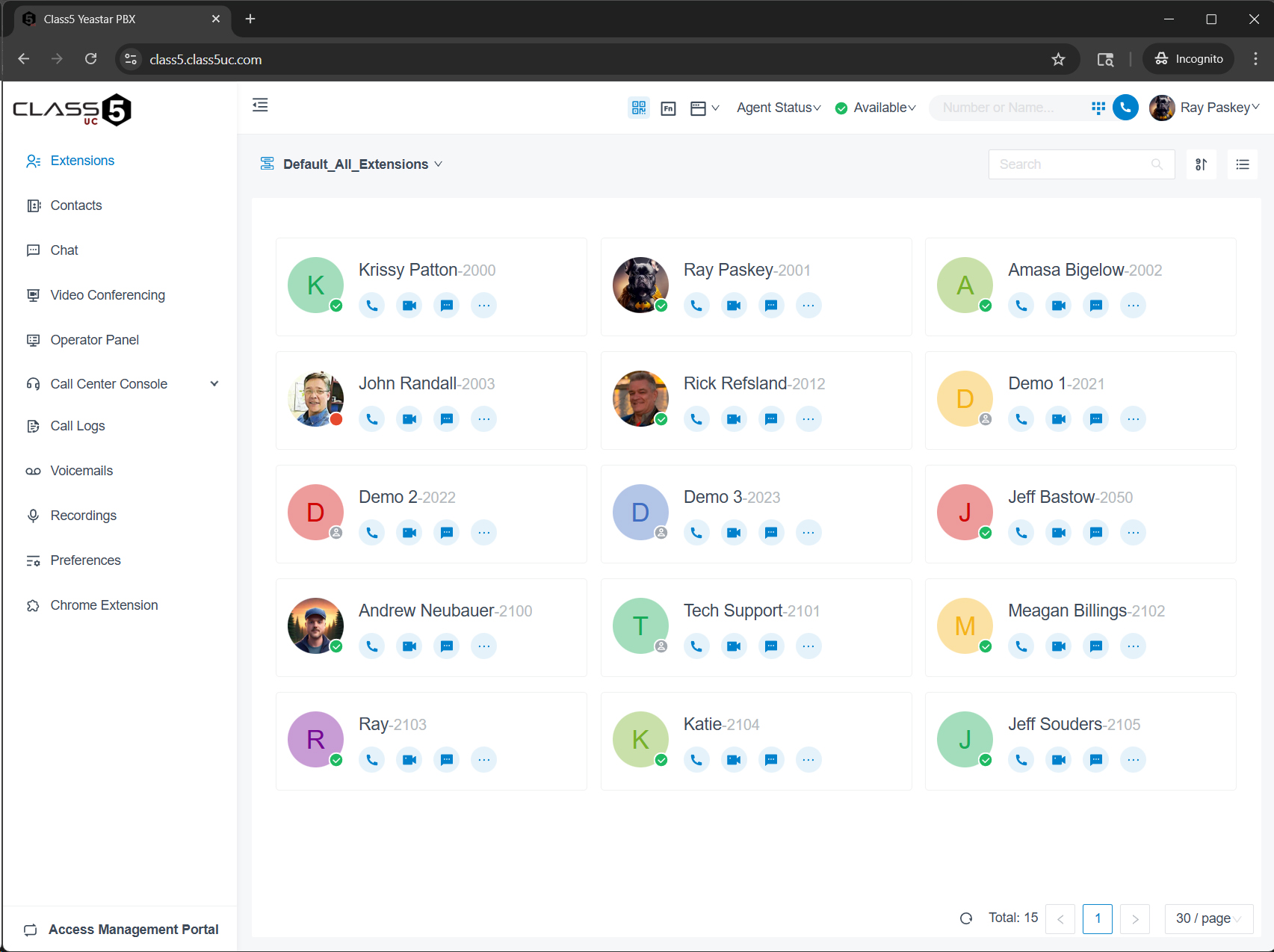
User login is your email address
Click on the “Reset Password” and follow the instructions that will be emailed to you. If you do not receive an email, please check with management to make sure your email address has been added to your extension and that it is correct.
You will want to setup the following items next:
- Personal preferences
- Voicemail
- Cell Phone App
- Call Control
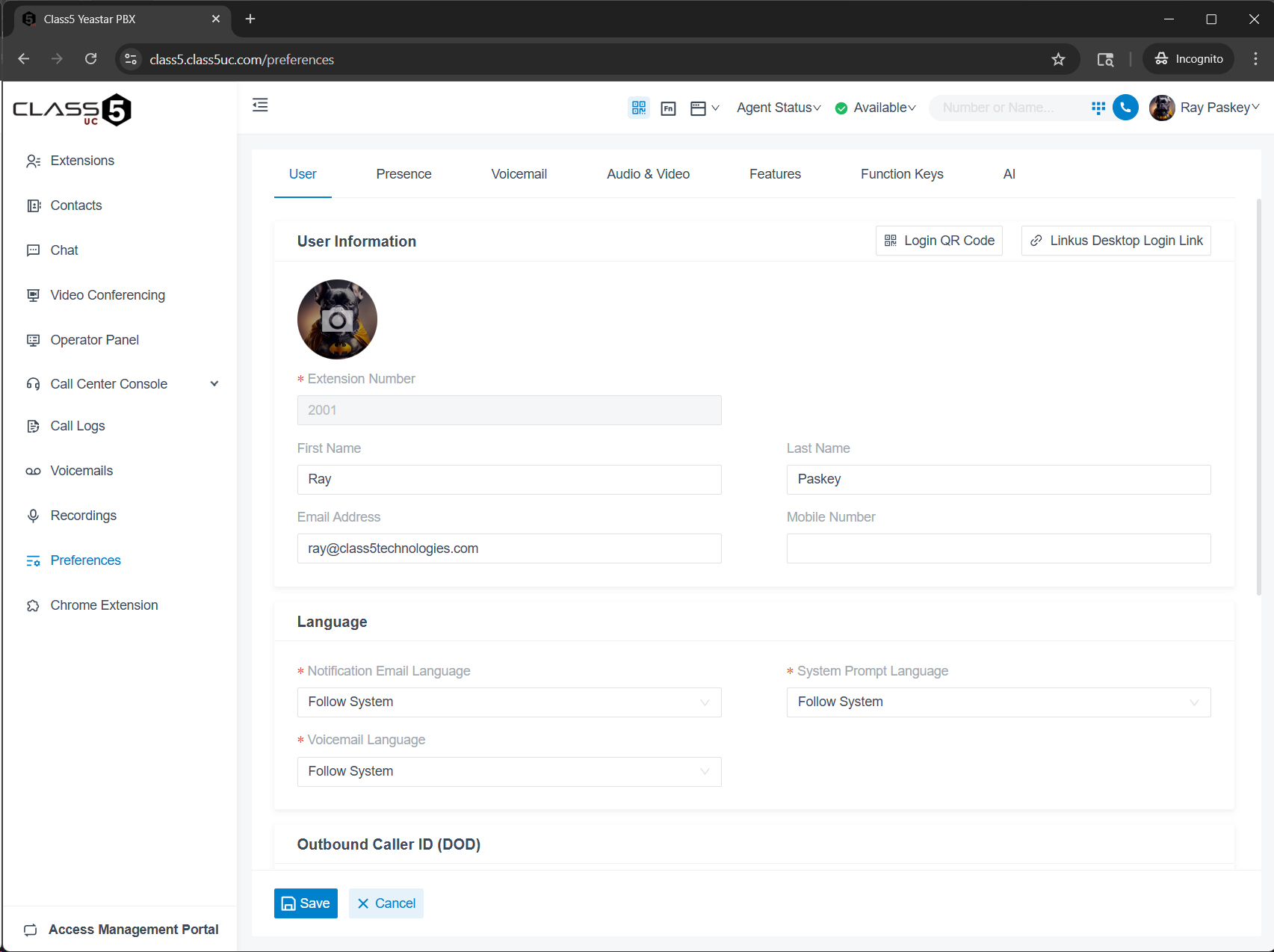 Personal Preferences / User Settings
With the menu on the left click on Preferences.
There are several tabs where you can make changes to match your personal needs. You can upload an image to represent yourself within the phone system to others, update your name and email address, change your password, edit your Presence settings, etc.
 Voicemail
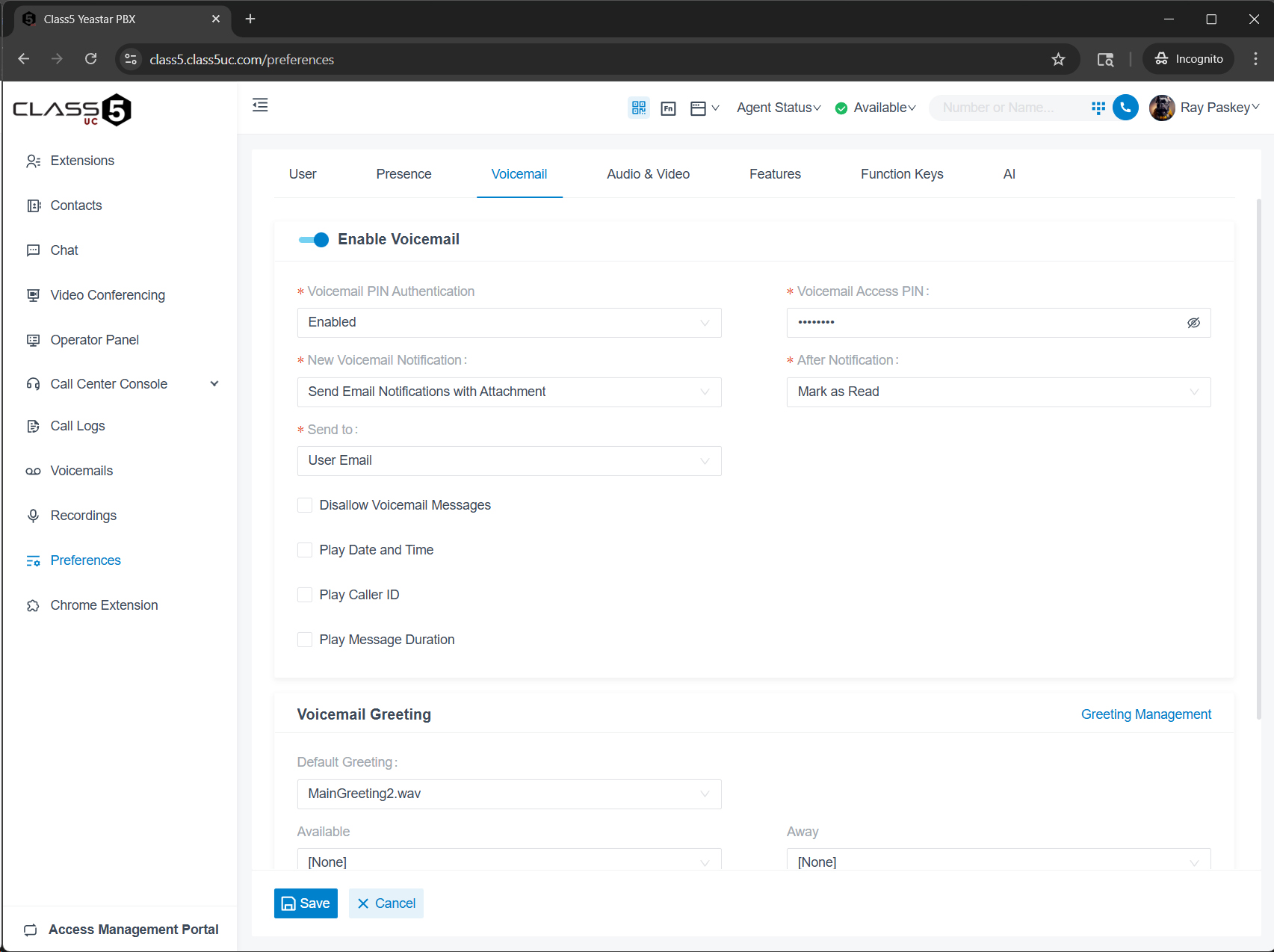
Within the Preferences section there is a tab along the top called Voicemail.
Here you can change your PIN for logging in remotely or from a desk phone, you can turn on or off voicemail to email notifications, make changes to how you hear your voicemails (Play date, caller ID)
 Cell Phone App
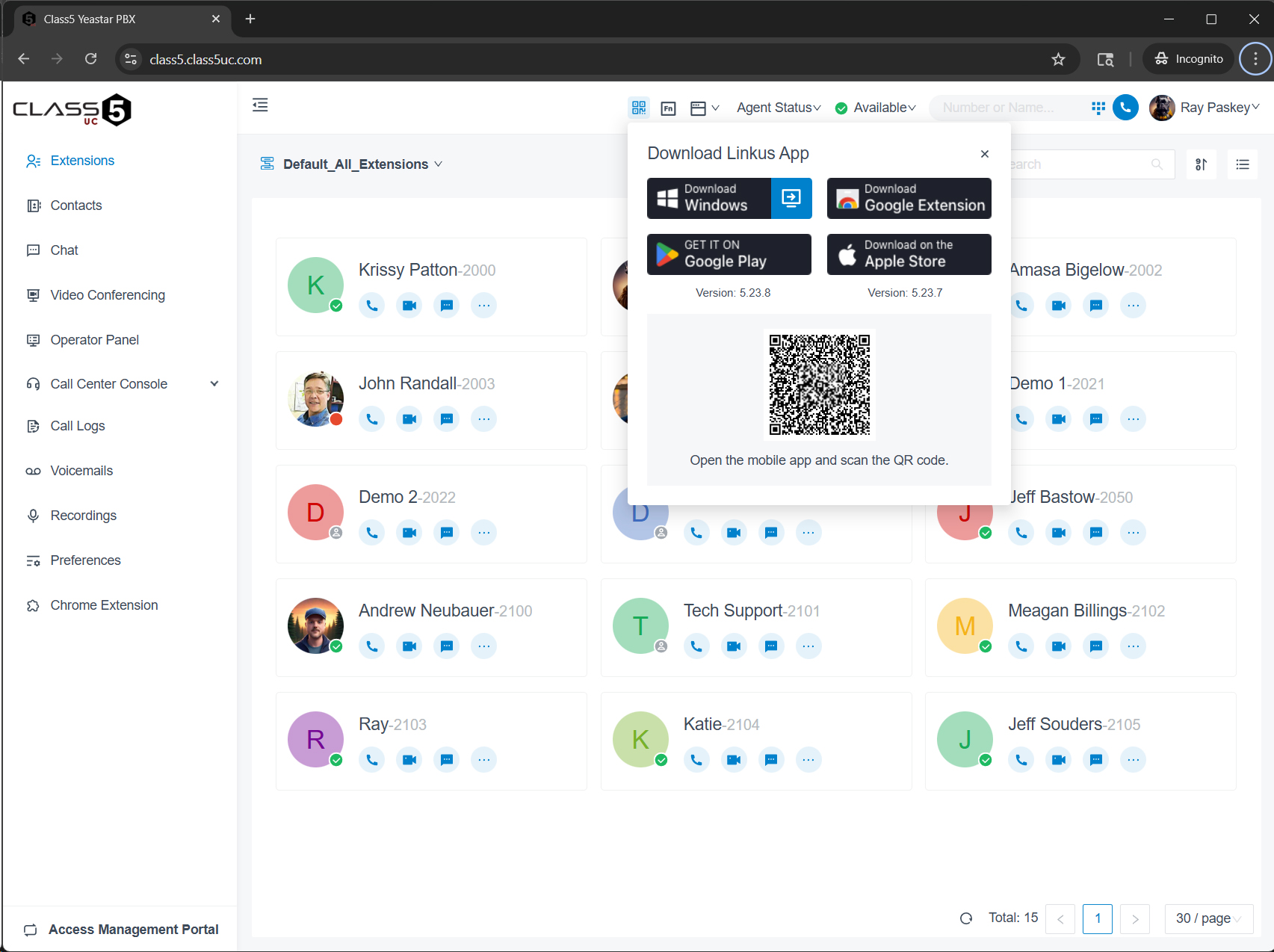
Loading and logging into your cell phone app is quick and easy. Once logged into your Collaboration website click on the icon with 4 small squares with a blue tinge. That will drop a window down with a QR code unique to your extension.
Use your phones camera to highlight the QR code image and click on it. That should bring up the app to download and install on your phone. Once installed you can login with the same QR code by clicking on the square blue icon on the top right of the Cell Phone app login page.
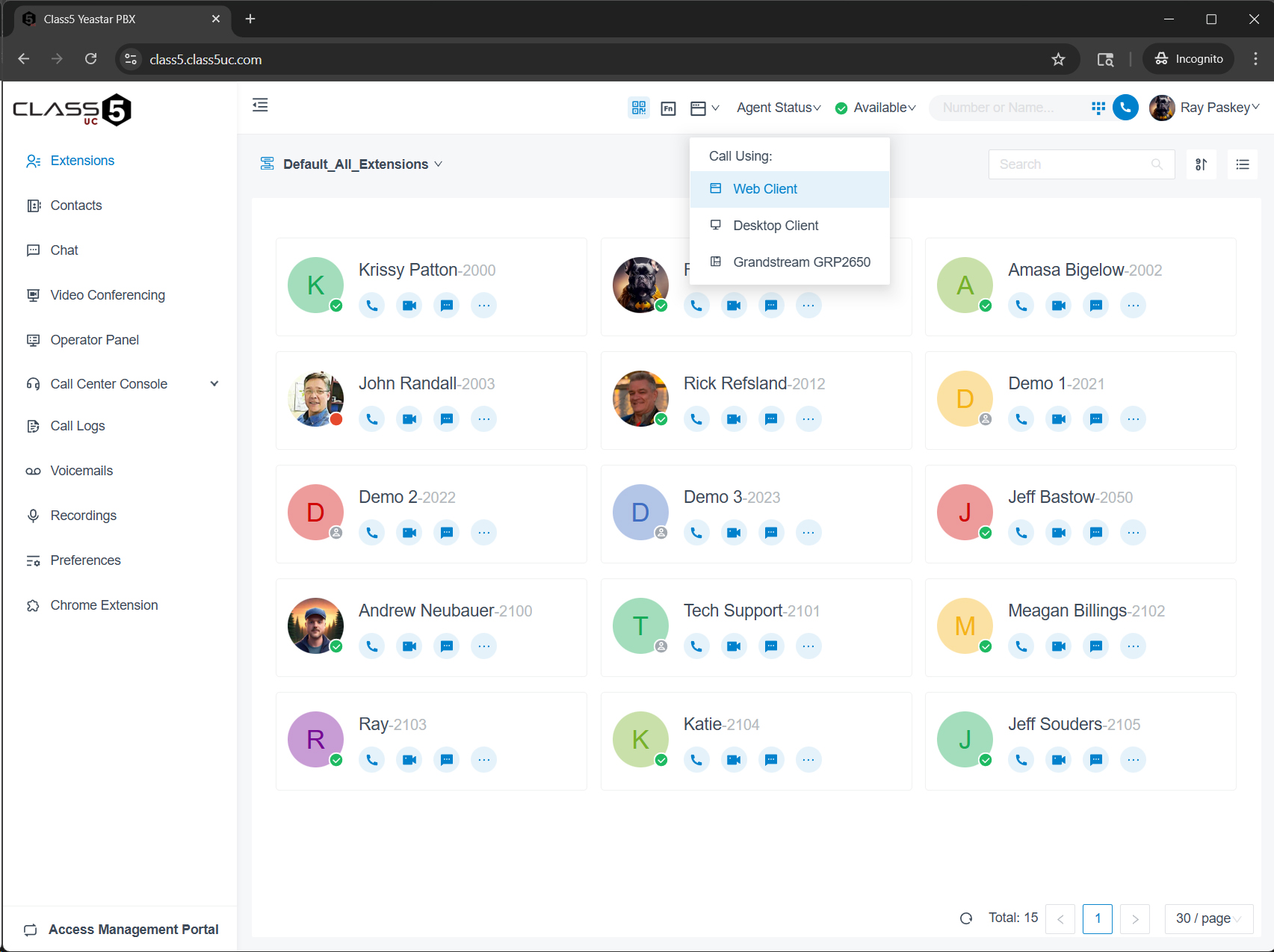 Call Control
This is simple, how do you want to use your Collaboration? You can use Collaboration as a standalone VOIP extension with a headset or speakerphone, or to control your desk phone, or to control your cell phone app.
* Click on images to enlarge them